D-Link Router can be set up and configured in just a few minutes. Once you have set up your router and configured it, your WiFi connection will be up and running, and you will be able to connect to the internet through your D-Link Router.
To set up a D-Link router, you need to gather the router along with its power adapter, an Ethernet cable, and a device such as a laptop or smartphone. You also need an active internet connection, which can be from a modem, cable gateway, or Ethernet connection.
Some internet service providers require additional information. For instance, a PPPoE connection may require an ISP-provided username and password. Once you have all the details available, make sure that your D-Link router is connected to your modem with an Ethernet cable.
Now, follow these steps to set up your D-Link Router –
- Power on your D-Link Router.
- Connect your PC or Laptop to the router using an Ethernet Cable or WiFi throu.
- Once your device is connected, open a web browser and go to http://192.168.0.1 or http://192.168.1.1 (The default gateway address may vary from model to model; here is a list of default router IP address).
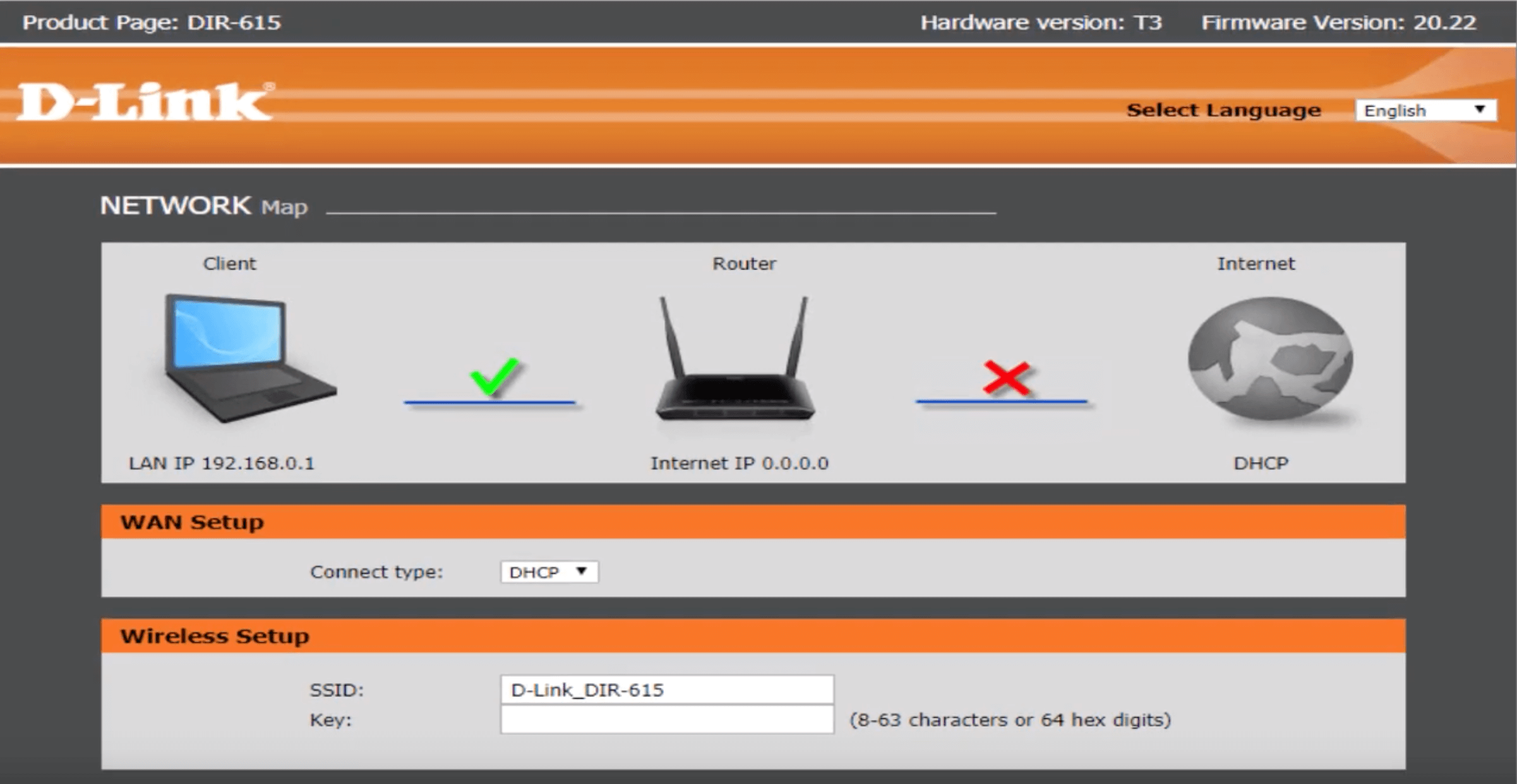
- A login page will appear. For most D-Link routers, the default username is admin, and the password field is to be left blank. Click on Log In. (You can find the default admin username and password for your router on a label printed on the device or supplied in documentation)
- Now, you can set up and configure your router using the Internet Connection Setup Wizard.
- Under Wireless Setup, enter the SSID (WiFi Name) and Key (Password).
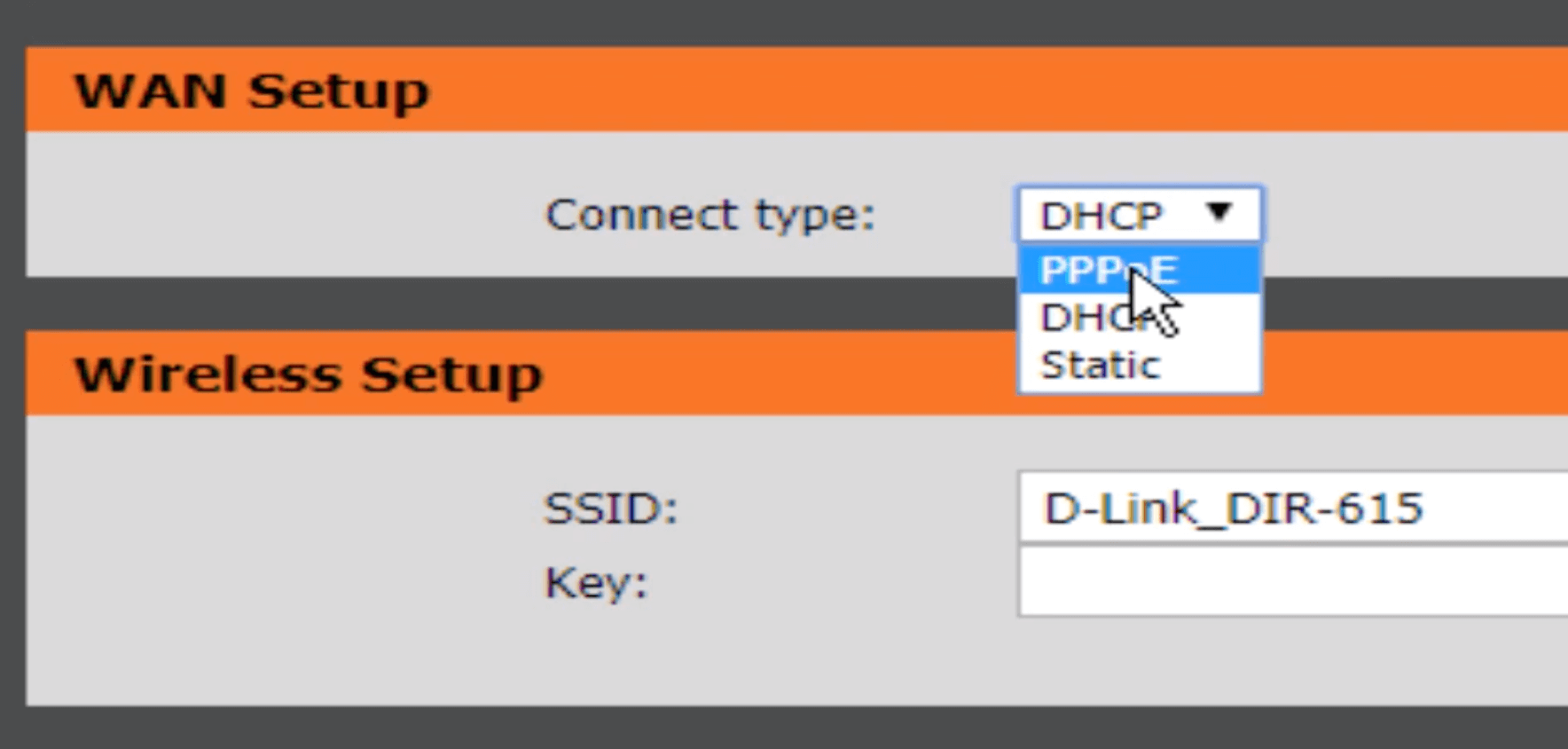
- Under WAN Setup, choose Connect type: DHCP/PPPoE/Static (You can ask your ISP about your internet connection and the required details).
- After you have configured your internet connection, you can then click on Save and Connect, and the router will now connect to the Internet.
- You can then visit the Wireless Settings and set up your Wi-Fi network, including its SSID and password.
Configure D-Link Router Security
Security should be part of the initial D-Link router setup rather than something that you can configure later. As soon as you set up the router, or during the setup, you should change the administrator credentials. Changing admin credentials is necessary, as not doing so can allow anyone on the network to access the network settings. The router administrator password is different from the WiFi password, and both should be treated as separate credentials.
Next, create a strong WiFi password for the network in the Wireless section (If you haven’t done it already during the router setup process). Use a sufficiently long and unique password that you can easily remember rather than a simple word, phone number, or easily guessed sequence.
For WiFi security, use WPA3 when supported by both the router and your devices. If WPA3 is unavailable on the router or is not compatible with your devices, use WPA2-AES instead of any outdated wireless security standards.
Also review remote administration settings and disable them if not necessary, as router management should generally not be unnecessarily exposed to the public internet. Keep the router’s firmware updated and use the built-in firewall where available to avoid unnecessary issues.
Configure 2.4 GHz and 5 GHz WiFi
Many D-Link routers these days come with dual-frequency bands and support both 2.4 GHz and 5 GHz WiFi.
The 2.4 GHz WiFi band generally provides better range and can work better through objects and walls, but since it is the most common frequency band, it is more susceptible to congestion and interference.
The 5 GHz WiFi band generally offers higher speeds and has more available channels, but its effective range is often shorter, meaning that it has less range than the 2.4 GHz band. Some newer D-Link routers come with an additional frequency band and support the 6 GHz band as well.
For devices that perform high-bandwidth activity, such as computers, modern smartphones, and gaming systems, using the 5 GHz band is the obvious choice when they are reasonably close to the router. For older or smart-home devices, and devices away from the router, the 2.4 GHz band may work well.
You can configure and enable the 2.4 GHz and 5 GHz WiFi settings on your D-Link router by logging into the admin interface via 192.168.0.1 or 192.168.1.1 and heading over to Settings > Wireless (or Setup > Wireless Settings on older models).